

Since the advent of Office 2013, I've been increasingly frustrated with the new Outlook contact cards, and the round-about way needed to access the legacy GAL properties dialog as shown below:
This solution was originally developed for Skype for Business 2013/2015. While it worked reliably for several years, Microsoft has since moved to Teams as their primary collaboration platform.
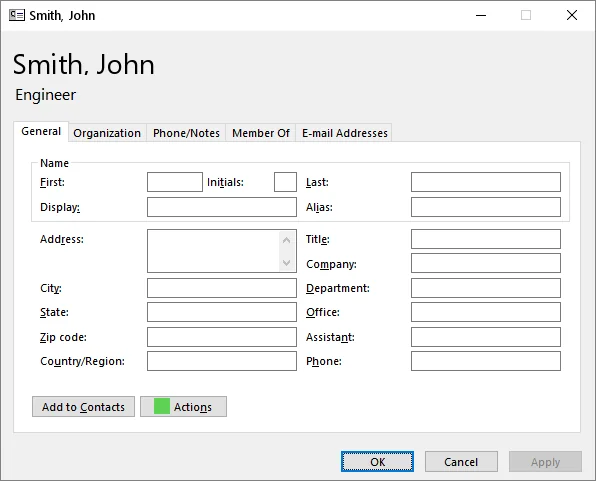
After a ton of research, I discovered it's possible to add custom context menus within the Lync 2013 / Skype for Business client, as per this page from Microsoft. From here, I needed to discover the API necessary to actually launch the legacy GAL properties dialog box. Doing a bit of research, I simply could not find an easy way to do this, the only thing I was coming across was the following registry key, which just launched the GAL properties box from within Outlook:
Windows Registry Editor Version 5.00

[HKEY_CURRENT_USER\Software\Microsoft\Office\16.0\common\contactcard]
"TurnOnLegacyGALDialog"=dword:00000001
Nearly giving up after hours of digging through the API and searching, I was provided some help via Dmitry Streblechenko on StackOverflow (thank you, Dmitry!).
In the end, I ended up with a simple VBS and registry key:
LaunchGALProperties.vbs
If WScript.Arguments.Count = 2 Then
  Dim objOutlook : Set objOutlook = CreateObject("Outlook.Application")
  Dim objNamespace : Set objNamespace = objOutlook.GetNamespace("MAPI")

  objNamespace.CreateRecipient(WScript.Arguments(1)).AddressEntry.Details()

  Set objOutlook = Nothing
  Set objNamespace = Nothing
End If
LaunchGALProperties.reg
Windows Registry Editor Version 5.00

[HKEY_LOCAL_MACHINE\SOFTWARE\WOW6432Node\Microsoft\Office\16.0\Lync\SessionManager\Apps\{4C13AA00-01F0-428C-B582-38E4F726D97E}]
"Name"="Outlook Properties"
"ApplicationType"=dword:00000000
"SessionType"=dword:00000000
"ExtensibleMenu"="ConversationWindowRightClick;MainWindowRightClick;MainWindowActions;ConversationWindowActions;ContactCardMenu"
"ApplicationInstallPath"="C:\\\\windows\\\\System32\\\\wscript.exe"
"Path"="C:\\\\windows\\\\System32\\\\wscript.exe C:\\\\temp\\\\LaunchGALProp\\\\LaunchGALProperties.vbs \"%user-id%\" \"%contact-id%\""
Boom! After restarting Skype for Business, I was treated with the following view:
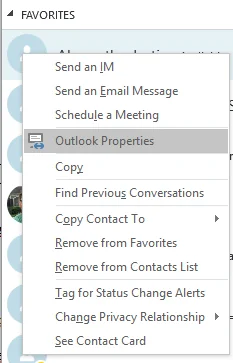
It's quite unfortunate that Microsoft removed this functionality within the newer versions of the Lync/Skype clients, but at least with a little bit of elbow grease I was able to recover it...for now.
Update — April 2019
It appears that the wscript command is no longer working (for some reason). I was able to workaround this by creating a C# project with the following source code:
Program.cs
using System;

namespace LaunchGALProps {
 class Program
 {
  static void Main(string[] args) {
   if(args.Length == 2)
   {
    dynamic objApp;
    dynamic objNamespace;

    objApp = Activator.CreateInstance(Type.GetTypeFromProgID("Outlook.Application"));
    objNamespace = objApp.GetNamespace("MAPI");

    objNamespace.CreateRecipient(args[1]).AddressEntry.Details();
   }
  }
 }
}
If you do not have Visual Studio installed, but you DO have .NET v4+ installed, you can compile the application like so:
C:\Windows\Microsoft.Net\v4.0.30319\csc.exe /out:LaunchGALProps.exe Program.csAfter my program was compiled, I was able to update my registry key values for ApplicationInstallPath and Path -- once this was done everything was working again.
If you're still using Skype for Business, you can compile the C# version using the .NET Framework that's already installed on Windows. No Visual Studio required!
Modifying registry keys can cause system instability if done incorrectly. Always back up your registry before making changes and test in a non-production environment first.